Pipeline Overview
VariantLab uses a 6-stage pipeline to transform a single image into a collection of unique variations. Each stage builds on the previous one.
The 6 Stages
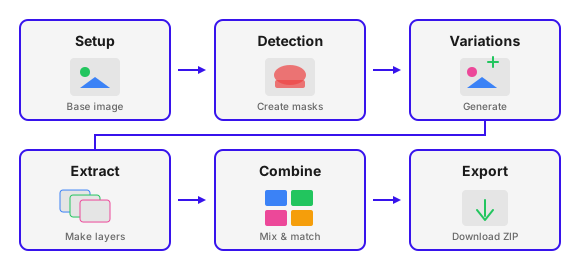
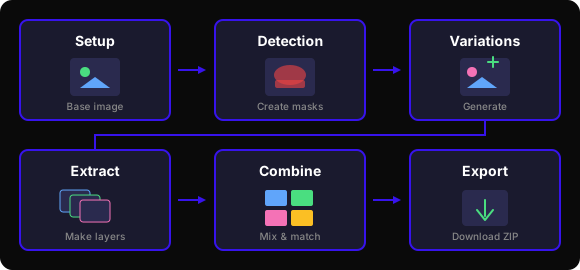
1. Setup
Purpose: Create or upload your base image.
What you do:
- Write a prompt describing your desired image
- Choose an AI model (Flash or Pro)
- Configure aspect ratio and size
- Generate up to 5 base images
- Select your favorite as the "base image" for the pipeline
Output: 1-5 base images, with one marked as the favorite. The favorited version will be used in the next step, the Detection phase.
2. Detection
Purpose: Identify and isolate traits (parts of the image you want to vary).
What you do:
- Define traits to detect (e.g., "eyes", "background", "hat")
- Run AI detection to create masks
- Manually refine masks with brush/eraser tools
- Set the layer order (back to front)
Output: Masks for each trait, defining which pixels belong to that trait
3. Variations (Two Steps)
The Variations page has two tabs that work together:
Variations Tab
Purpose: Generate alternative versions of each trait.
What you do:
- Write prompts describing how to modify each trait
- Generate variation images using AI
- Each variation is a modified version of the full base image
- Favorite the variations you want to extract
Output: Variation images (full images with modified traits)
Extract Tab
Purpose: Extract transparent layers from variation images.
What you do:
- Select which variations to extract
- Run extraction to apply masks and create transparent layers
- Review extracted layers for quality
- Favorite the layers you want in combinations
Output: Transparent layer images ready for combining
4. Colorize (Optional)
Purpose: Create color presets that recolor traits or the whole image during combination.
What you do:
- Create named color presets (e.g., "Fire", "Ocean")
- Assign colors to specific traits, or use whole-image mode
- Configure recolor model and strength
- Preview colors live with side-by-side comparison
Output: Saved color presets applied automatically during combination
5. Combine
Purpose: Mix and match layers to create unique combinations.
What you do:
- Review available layers per trait
- Configure combination settings
- Generate all (or a limited number of) combinations
- Color presets from Colorize are applied automatically
- Preview results
Output: Composite images with one layer per trait, plus colored versions for each preset
6. Export
Purpose: Download your collection.
What you do:
- Choose export format (PNG, SVG, or PSD)
- Configure cropping and naming options
- Download as a ZIP file
Output: A collection of ready-to-use images
How Stages Connect
Each stage depends on the previous one:
| Stage | Requires | Produces |
|---|---|---|
| Setup | Nothing | Base images |
| Detection | Base image | Trait masks |
| Variations | Trait masks | Variation images |
| Extract | Variation images | Layer images |
| Colorize | Layer images (optional) | Color presets |
| Combine | Layer images + color presets | Combinations |
| Export | Combinations | ZIP download |
If you change your selected base image after creating masks, you'll need to regenerate all downstream content (masks, variations, layers, combinations). VariantLab will prompt you before deleting existing work.
Combination Math
The number of possible combinations grows multiplicatively:
Shape combinations = (trait1_variations + 1) × (trait2_variations + 1) × ...
The "+1" accounts for the original layer of each trait.
Example:
- Eyes: 3 variations (+ original = 4 options)
- Hat: 2 variations (+ original = 3 options)
- Background: 4 variations (+ original = 5 options)
- Shape combinations: 4 × 3 × 5 = 60
With Color Presets
If you've created color presets in the Colorize step, each preset generates an additional set:
Total = shape_combinations × (1 + number_of_presets)
Example: 60 shape combinations + 2 color presets = 60 originals + (60 × 2) colored = 180 total
Best Practices
- Start simple - Begin with 2-3 traits to understand the workflow
- Use clear prompts - Specific prompts produce better detection and variations
- Refine masks carefully - Good masks lead to clean layer extractions
- Set layer order early - This affects how layers composite
- Favorite selectively - Only include your best variations in combinations